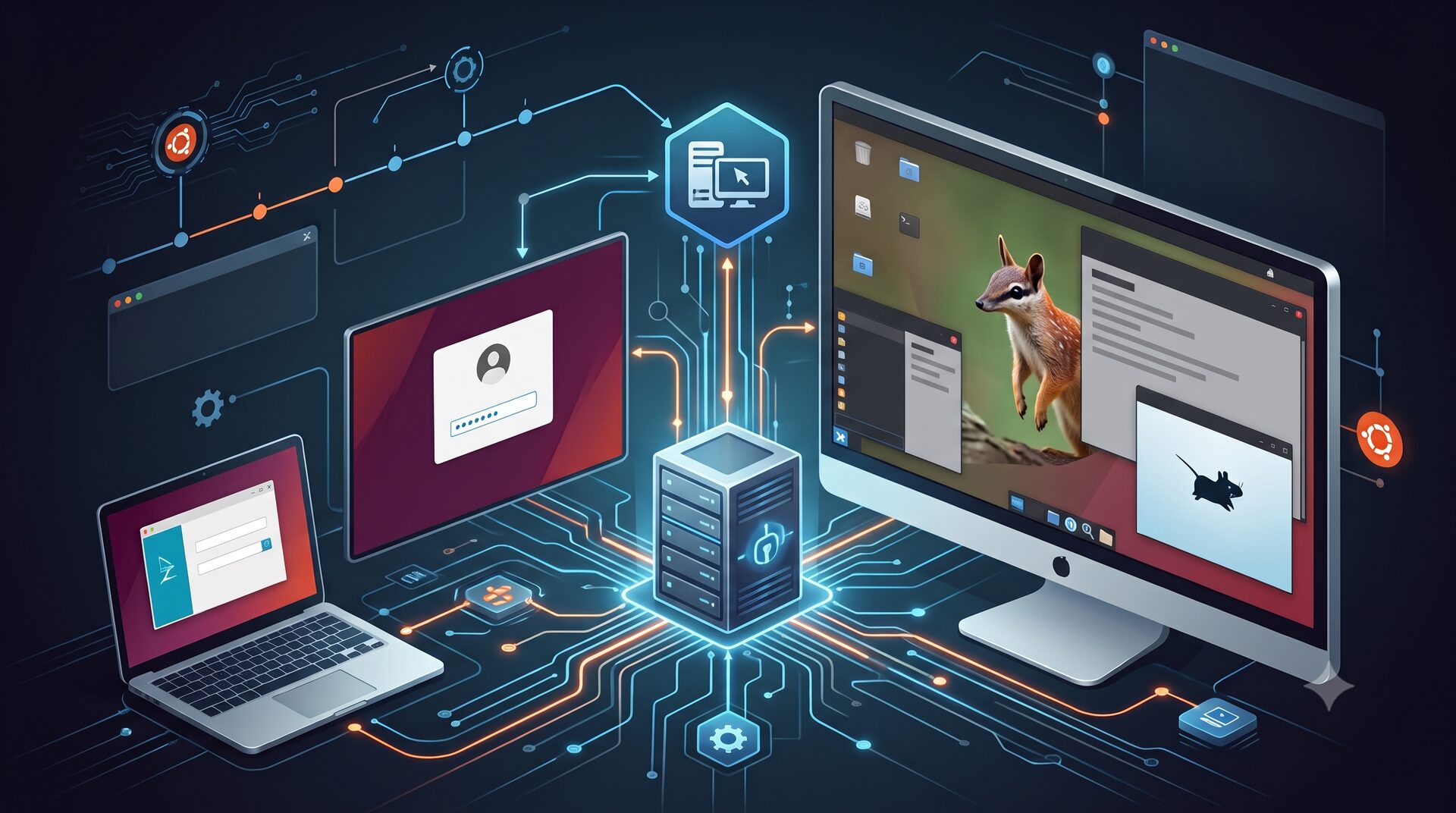
An XRDP remote desktop with XFCE and a shared clipboard on Ubuntu.
What a remote desktop is, and what we will configure
A "remote desktop" lets you use the graphical interface of a Linux computer from another device, as if you were sitting in front of it: you see the windows, move the mouse and type on the keyboard, all over the network. It is very handy for managing a server that has no monitor attached, for example a VPS in a datacenter.
On Windows the standard protocol for this is called RDP (Remote Desktop Protocol). To let a Linux server talk to RDP clients you use xrdp, a server that translates RDP into a Linux graphical session. In this guide we will configure, step by step: the xrdp server, the XFCE desktop environment, the LightDM login manager and — above all — the shared clipboard, that is copy/paste working between your own computer and the server.
Why XFCE (and not GNOME)
XFCE is a desktop environment: the collection of windows, taskbar, menus and settings that make up the "desktop". Several desktop environments exist; the best known are GNOME (the default on Ubuntu) and XFCE.
The choice of XFCE is not accidental. GNOME is polished but "heavy": it uses a lot of memory and leans heavily on the graphics card's acceleration. On a server, however, there is usually no graphics card: all the on-screen drawing is done by the CPU. Under those conditions GNOME becomes slow and choppy. XFCE, by contrast, is lightweight, uses little memory and runs well even without a GPU: perfect for a remote desktop on a server. In exchange it gives up a few graphical effects, which matter little over a network connection anyway.
Installation
Install the server, the desktop environment and the login manager in one go:
sudo apt install xrdp xorgxrdp tigervnc-standalone-server \
                 xfce4 xfce4-session xfce4-goodies \
                 lightdm lightdm-gtk-greeter
In this list LightDM is the display manager, the graphical login screen that asks for username and password; xrdp is the server that receives the RDP connections.
Give xrdp access to the TLS certificate
Every RDP connection is encrypted with a TLS certificate (the same technology that makes "https" websites secure). The file holding the private key is readable only by members of a system group called ssl-cert. So that xrdp can use it, its service user must be added to that group; without this step the login often gets stuck on a black screen:
sudo adduser xrdp ssl-cert
Choose XFCE as the session
You have to tell xrdp which desktop to start when someone connects. This is done at the end of /etc/xrdp/startwm.sh, the script run at every login:
exec dbus-run-session -- startxfce4
and, to be safe, by pointing to XFCE in the user profile as well:
echo "xfce4-session" > ~/.xsession
Finally enable the service, so it starts again on every reboot:
sudo systemctl enable --now xrdp
The shared clipboard (the most important part)
The convenience that really makes a difference is being able to copy and paste between your own computer and the server: you copy a command from the browser and paste it into the remote terminal, or the other way around.
In the RDP world the clipboard is not a given: it travels over a dedicated protocol channel called CLIPRDR (from Clipboard Redirection). On the server this channel is handled by a small xrdp program called xrdp-chansrv (channel server): it takes what you copy on the client and makes it available on the server, and vice versa.
For copy/paste to work both ways — from client to server and from server to client, what is called a bidirectional link — you have to remove any block in the configuration of xrdp's session manager. The session manager is the component (called xrdp-sesman) that opens and manages user sessions; its configuration lives in /etc/xrdp/sesman.ini. In the [Security] section set:
RestrictOutboundClipboard=none
RestrictInboundClipboard=none
Here Outbound is the server → client direction and Inbound is client → server; setting both to none removes every restriction and the clipboard works fully in both directions.
After every change to sesman.ini you must restart both xrdp services, not just the main one:
sudo systemctl restart xrdp xrdp-sesman
There is one detail that often causes trouble, though. There must be exactly one xrdp-chansrv per graphical session. If you disconnect and reconnect several times without actually closing the session, "orphan" xrdp-chansrv processes stay alive and fight over the CLIPRDR channel: the result is the classic copy/paste that sometimes works and sometimes doesn't. To set things right, close those processes and reconnect:
sudo pkill -f xrdp-chansrv
# on reconnect a single, clean one is spawned
A few useful notes:
- Copying images from your computer to the server also works (for example a screenshot pasted into a program on the server): chansrv transfers them in
image/bmpformat. - As a clipboard "history" you can use xfce4-clipman, the XFCE clipboard manager, enabling it at startup (in
~/.config/autostart/); it does not interfere with pasting images. - If something is off, the xclip tool helps you see from the command line what is actually in the clipboard:
xclip -selection clipboard -t TARGETS -out
xclip -selection clipboard -t image/bmp -out > /tmp/clip.bmp
In the same configuration, under the [Chansrv] section, you can also enable client folder sharing: your computer's drives appear as a folder inside the server.
FuseMountName=thinclient_drives
(Optional) Disable graphical effects if GIMP misbehaves
XFCE can draw window shadows and transparencies through a feature called compositing. On a server without a graphics card, though, these effects are sometimes unstable and some graphical programs — typically GIMP — can misbehave. In that case it is worth turning compositing off; the effect is immediate and nothing needs restarting:
xfconf-query -c xfwm4 -p /general/use_compositing -s false
To turn it back on, set true again. Alternatively, leave compositing on and start only the problematic program, asking it to draw without graphics acceleration:
GDK_BACKEND=x11 LIBGL_ALWAYS_SOFTWARE=1 gimp
Advice: protect everything with a VPN
RDP should never be exposed directly to the Internet: it is a service heavily targeted by automated attacks. The recommended approach is to put the server behind a VPN (an encrypted private network, for example with OpenVPN) and allow RDP connections only from the VPN network. In practice you connect to the VPN first and then, through it, to the remote desktop: the convenience is exactly the same, but the service is no longer reachable — nor attackable — from the rest of the Internet.
Sources
- xrdp: https://github.com/neutrinolabs/xrdp
- xorgxrdp: https://github.com/neutrinolabs/xorgxrdp
- Arch Wiki — Xrdp (clipboard/chansrv): https://wiki.archlinux.org/title/Xrdp
- XFCE: https://www.xfce.org
- LightDM: https://www.freedesktop.org/wiki/Software/LightDM/
- xfce4-clipman: https://docs.xfce.org/panel-plugins/xfce4-clipman-plugin
- OpenVPN Community: https://openvpn.net/community/